Home > Manuals > iQ Whole House Entertainment > IMS Media Server > Installing the iQ IMS

Installing the iQ IMS

 
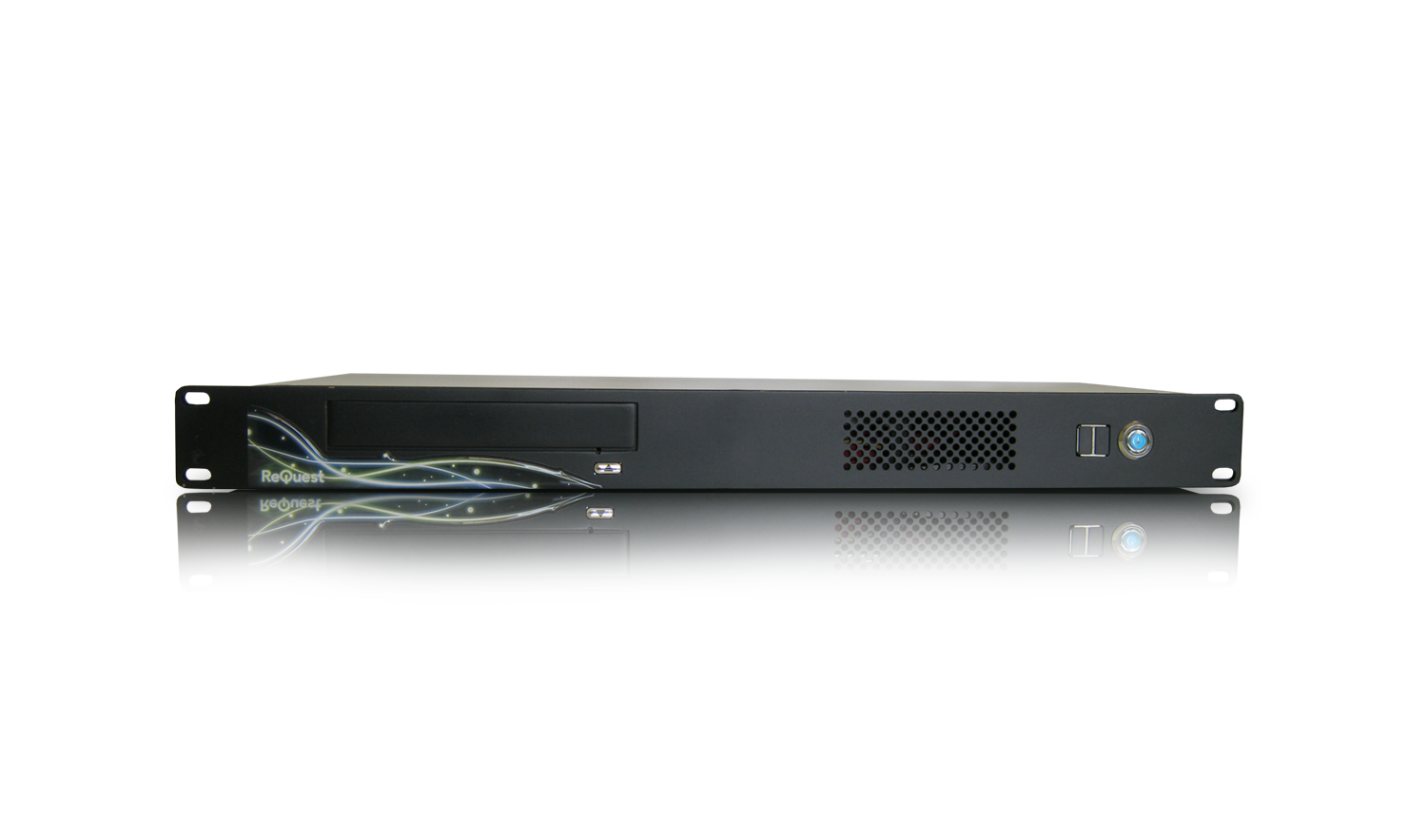
 Front of iQ IMS


  Power Light- illuminates blue when the server is turned on.
  IR Window - location where infrared signals are received.
  Status Light
  • pulses green-red when ReQuest server is starting up.
  • solid green during normal operation of ReQuest server.
  • pulses green-clear when ReQuest server is NetSyncing (when configured as a NetSync client).
  • solid red when ReQuest server is configured as a NetSync Client and unable to contact its NetSync Server.
 
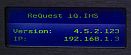
 LCD Display - Displays IP address and software version of the server. The configuration menu can be accessed to change the network configuration.
  Front Power Button - Turn the server on/off. The Rear Power Switch located on the back of the chassis must also be switched to the on position for the ReQuest server to power on.
  CD/DVD ROM Drive - Used for archiving music CD's and Movie DVD's (for systems equipped with ReQuest Intelligent Media Client).
  Eject Button - ejects CD/DVD ROM Drive. This will not function while the Status Light pulses green-red.
  Thumb Screws - used to remove or secure the faceplate of the server.


 Behind the Faceplate of iQ IMS
 

  IR Enable- Turns the front IR receiver on/off.
 
 IR Status- Illuminates green when front IR receiver is turned on.
  USB  Keyboard Port - Additional USB port convenient for connecting a keyboard to the front of the server.
  Hard Drive - SATA Hard drive that contains Serious Play Operating System and storage for music/movies. Drive must be inserted for F.Series to start up.
 
 CD/DVD Activity Light  - Located underneath CD/DVD drive, the activity light illuminates green when CD/DVD is in use.
  CD/DVD Manual Eject Button - Also located underneath the CD/DVD drive tray, this will eject the CD/DVD tray even if the ReQuest server hasn't completely started up.


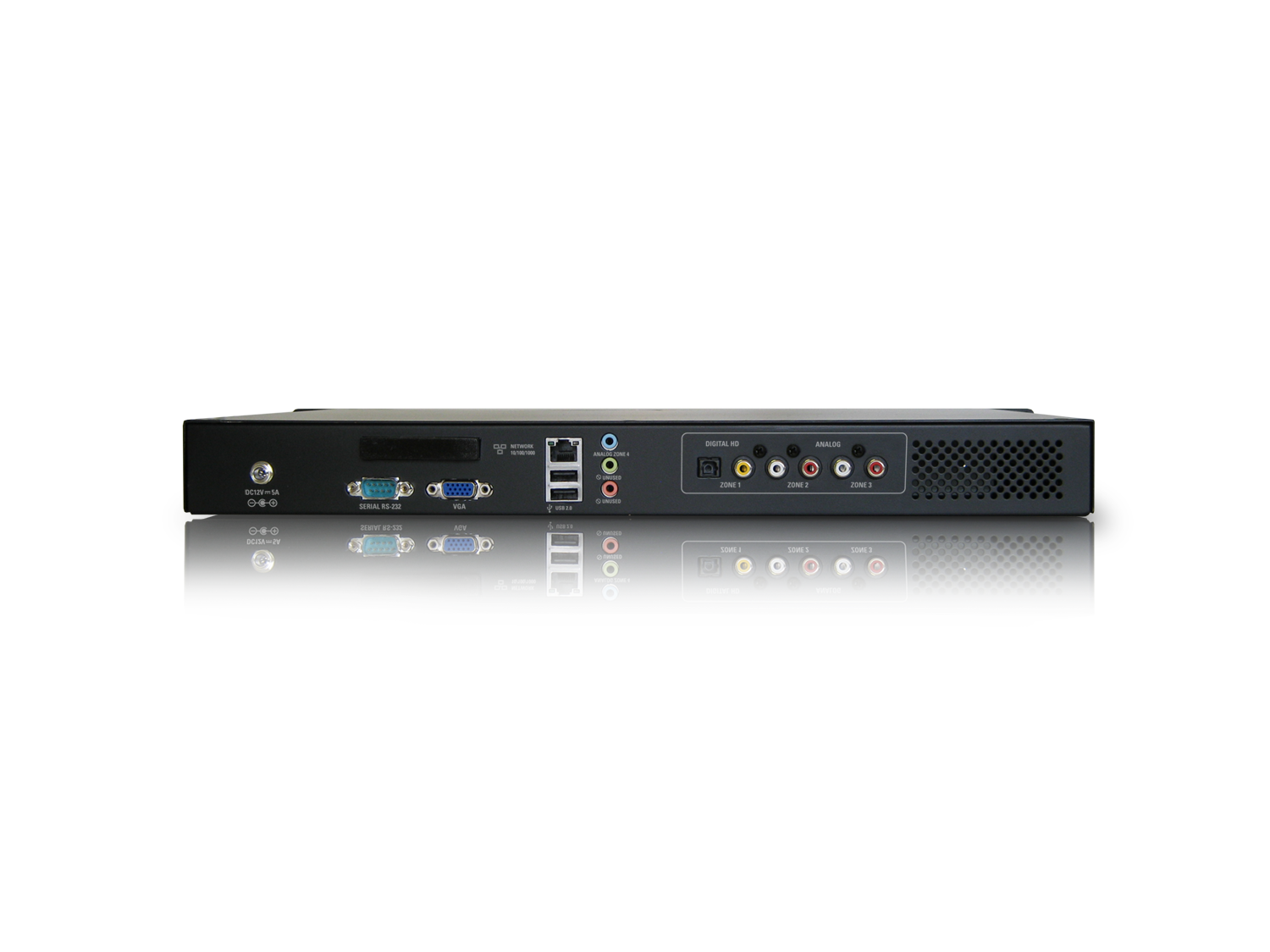
Rear of iQ IMS


 Power Switch - Turns power on/off. Must be in ON position for front power button to work.
 

 Power Connector - Connect to power source using supplied cable.
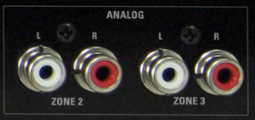
  Analog Audio - The top row of connectors includes analog audio connectors for iQ hard drive sources 1-4.
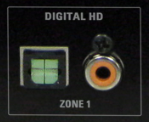
  Digital Audio - The digital audio connectors on the top right mirror the output of the first iQ hard drive source only.
  Analog Audio - The analog audio connectors on the bottom right are for streaming radio and Finetune sources.
  Digital Audio - The digital audio connectors on the bottom right mirror the audio produced by the first streaming radio output.
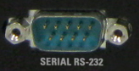
  Serial - Connects to Intelligent Multi-Room Amplifier (IMA). To use more than one IMA, use a Serial Cable Kit (SCK).
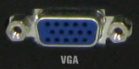
  VGA -For displaying on screen high definition GUI for iQ system.
  Component Video - For displaying on screen high definition GUI for iQ system.
  USB - Connect to ReQuest Serial Cable Kit (SCK) to attach additional serial devices such as ReQuest iQ IMA,  third party radio tuners, or one-way third party control.
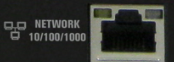
  Ethernet - Connect to gigabit Ethernet network. Network connection required  for iQ setup, CD/DVD metadata, use with Intelligent Media Client, and software updates.
  
 Unused - the analog and digital inputs are not currently used.


 Installation Steps

  1. If the hard drive has been removed to pre-load music and or movies, use the thumb screws  remove the faceplate of the unit and install the drive into the drive bay. Be sure to lock the drive. Use the thumb screws again to secure the faceplate back onto the chassis.
  2. Install ReQuest server into rack (if applicable). The ReQuest server ships with rack-ears already installed. The rack-ears can be easily unscrewed and removed if desired.
  3. Connect audio cables to the iQ IMA. Connect video cable(s) (if the video output is going to be used) to the TV or video distribution system.
  4. Connect IMS to the home network via the Ethernet port.
  5. Connect power cable to the ReQuest server and power source. The ReQuest server will automatically detect and switch between 110 volt and 220 volt power sources.
  6. Power on the IMS. Typical boot time is 1-3 minutes but can vary depending on how much media is on the hard drive. During the boot process, the status light will pulse green-red. When done booting, the status light will be solid green.
  7. By default the IMS is set to use Dynamic Host Configuration Protocol (DHCP) which means that it will attempt to get an IP address automatically from the network. This address will be displayed on the LCD Display.

See also